Roles, permissions, and team access
Compare Owner, Admin, Member, and Viewer before granting access.
Examples use “Clients”. If you manage ads for your own company, this section is called “Companies”. The steps are the same.
Copy the article as Markdown to paste it into an AI agent.
Before you begin
- Belong to the Workspace being managed.
- Confirm the active Workspace before editing the team.
Expected result
You will be able to choose the right role for each person and understand which clients and actions they can access.
Before you start
The role controls general actions in the Workspace. Client assignments control which clients Members and Viewers can access.
Requirements
- Be in the correct Workspace.
- Know which tasks the person must perform.
- Know which clients they need to access.
Permissions
Only Owners and Admins can manage the team. Only the Owner can transfer ownership. Members and Viewers cannot change roles.
Steps
- Open Your Team from the user management area.
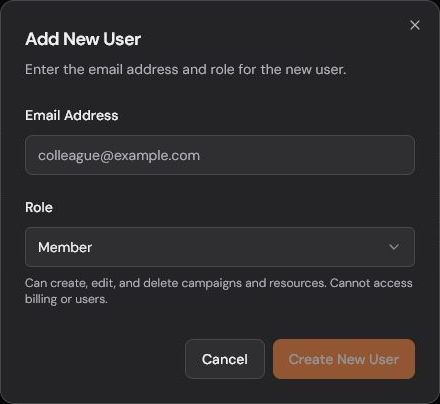
- Use Add Users to invite someone.
- Choose the least privileged role that still allows the required work.
- Use Edit Role to update an active member when responsibilities change.
- Assign Members and Viewers only to the clients they need.
- Use Resend Invite, Reset 2FA, or Remove from Workspace only when the situation requires it.
Validation
- The Owner can manage everything and transfer ownership.
- An Admin can manage the team, billing, settings, clients, and operations, but cannot transfer ownership.
- A Member can create and change campaigns and resources. Current behavior also allows Members to create clients and manage integrations.
- A Viewer can inspect data and reports without creating, editing, or deleting.
- Owners and Admins see every client. Members and Viewers see only assigned clients.
Troubleshooting
- If Your Team does not open, confirm that you are an Owner or Admin.
- If someone cannot see a client, review that client assignment.
- If someone has too much access, reduce the role and review assigned clients.
Limits and safeguards
Changing a role changes access to sensitive actions. Confirm the Workspace, person, and new role before saving. Never share credentials to work around a permission.
Related articles
- How Agencify works.
- How to create your first client.
- How to switch clients safely.
Was this article helpful?
Related articles
- How Agencify worksLearn how Workspaces, clients, and operational areas define the context of your actions.
- How to create your first clientCreate a client with a connected Meta or Google account, appropriate assignees, and the right AI authorization.
- How to switch clients safelyChange the operational context without acting on the wrong client.