How Agencify works
Learn how Workspaces, clients, and operational areas define the context of your actions.
Examples use “Clients”. If you manage ads for your own company, this section is called “Companies”. The steps are the same.
Copy the article as Markdown to paste it into an AI agent.
Before you begin
- Access to an active Agencify Workspace.
- Sign in to the correct account.
Expected result
By the end, you will understand the difference between the active Workspace and the selected client, and you will know how to confirm the context before viewing data or taking action.
Before you start
The Workspace brings together the company, team, and integrations. Within it, each client organizes the work for one brand or business. The selected client determines which Campaigns, Resources, Reports, and History entries appear.
Requirements
- Be signed in to the correct account.
- Have access to an active Workspace.
- Have access to at least one client to use operational areas.
Permissions
Owners, Admins, Members, and Viewers can navigate Agencify. What each person can view or change depends on their role and assigned clients.
Steps
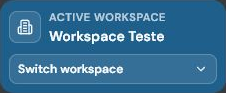
- Check the name shown under Active workspace at the bottom of the sidebar.
- Use Switch workspace if you need to enter another company.
- Open the operational area you need, such as Campaigns or Resources.
- Use the client selector in that area to choose the correct client.
- Check both names again before creating, editing, pausing, activating, or deleting anything.

Validation
The displayed data should belong to the selected client. Client and date selections may remain saved across pages, sessions, and devices.
Troubleshooting
- If a client is missing, confirm that it belongs to the active Workspace.
- If you are a Member or Viewer, ask an Owner or Admin to check your client assignment.
- When you switch Workspaces, Agencify may automatically select the first client you can access.
Limits and safeguards
There is no single global client selector in the sidebar. Its location varies by area. Switching clients in Campaigns can start a new provider read and update local data, but switching alone does not change provider campaigns.
Related articles
- Roles, permissions, and team access.
- What Agencify reads, syncs, and changes.
- How to switch clients safely.
Was this article helpful?
Related articles
- Roles, permissions, and team accessCompare Owner, Admin, Member, and Viewer before granting access.
- How to switch clients safelyChange the operational context without acting on the wrong client.
- What Agencify reads, syncs, and changesDistinguish provider reads, local synchronization, and real changes in Meta or Google.