An account, page, or asset is missing
Identify whether the issue is in the Workspace, integration, client, or provider access.
Examples use “Clients”. If you manage ads for your own company, this section is called “Companies”. The steps are the same.
Copy the article as Markdown to paste it into an AI agent.
Before you begin
- Know which client, provider, and asset should be available.
- Confirm the Workspace and client before reconnecting an integration.
Expected result
You will identify whether the missing item is caused by the Workspace, provider connection, client link, or asset permissions.
Before you start
An account can appear in Integrations without being linked to the client. A page, pixel, form, Instagram account, or WABA can also depend on access held by the connected identity and the client's ad account.
Requirements
- Know the client, provider, and asset type involved.
- Have a session that satisfies two-factor authentication when required.
- Be able to request an access review from the Meta or Google administrator.
Permissions
Every role can view permitted data. Owners, Admins, and Members can reconnect integrations and adjust links. Viewers must request those actions.
Steps
- Confirm the active Workspace.
- Open Integrations and check the Meta Ads or Google Ads card.
- If the connection is expired or revoked, use Reconnect.
- Confirm that the ad account appears in the provider card.
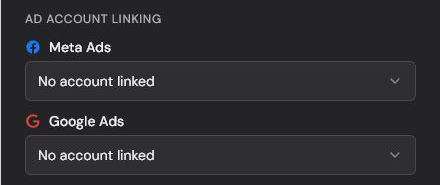
- Open Clients and confirm that the account is linked to the correct client.
- Return to the flow where the asset should appear and check the selected client again.
- If it is still missing, review the specific provider access.
Validation
The account should appear in Integrations, be linked to the client, and be available in the relevant selector. For Meta assets, also confirm the relationship among the Business Manager, ad account, page, and asset.
Troubleshooting
Meta resources
- The connected identity must access the Business Manager and ad account.
- The page must be available to the identity and the client context.
- A form may be unavailable if Lead Ads terms were not accepted.
- The Instagram account must be connected to an accessible page.
- The WABA must belong to the selected Business Manager.
- If the ad account has no pixel, zone creation says so. Create the pixel in Meta Events Manager or, when the Create pixel button appears, create it right there and paste the code shown into your site's head section.
Google accounts
- Confirm direct account access or the correct link through the MCC.
- Closed, cancelled, disabled, or inaccessible accounts may be skipped.
- A partial MCC access failure can prevent some subaccounts from appearing.
Limits and safeguards
The current card has no visible manual sync button. Use Reconnect only when authorization must be renewed. Do not use Disconnect as the first recovery attempt because it tries to revoke provider access. If the issue continues, tell support the provider, client, asset type, and approximate time without sending tokens, credentials, or raw technical errors.
Related articles
- How to connect Meta safely.
- How to connect Google safely.
- How to create your first client.
Was this article helpful?
Related articles
- How to connect Meta safelyAuthorize the correct identity, review discovered accounts, and know when to reconnect.
- How to connect Google safelyAuthorize the correct Google account and review discovered direct accounts and MCC subaccounts.
- How to create your first clientCreate a client with a connected Meta or Google account, appropriate assignees, and the right AI authorization.